 splines
← all scripts / norns
kinesis new
2025 habitus workshop norns script
install
In maiden's REPL (the >> prompt at the bottom of the editor), run:
;install https://github.com/jaseknighter/kinesisOr add the splines catalog to maiden and install it from the project manager. Restart norns if the script ships a new engine.
readme from jaseknighter/kinesis
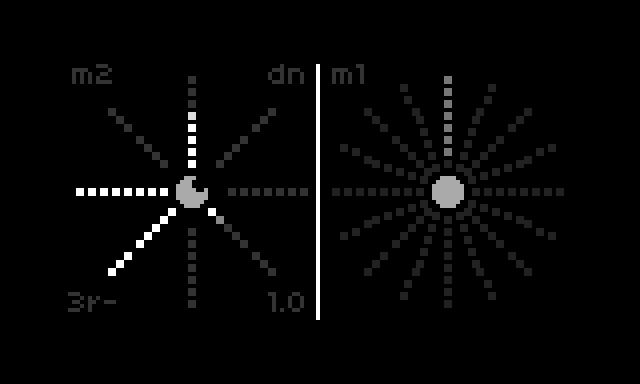
Although musical out of the box, the kinesis script was written for the 2025 habitus workshops and is meant to be tinkered with by folks with a beginning to intermediate level of norns-scripting experience...for example, folks who have completed the norns studies but aren't quite ready to create a whole script from scratch.
The notes below cover installation, quick start (for making sounds) and some ideas for modifying the script.
Many comments have been added to the code that help explain how it works and provide suggestions for further modification/exploration. Comments are pieces of text preceeded with two dashes such as:
-- here is a comment
When code is preceeded by two dashes (--) it is ignored by Lua. When making changes to code, it is often helpful to make a copy of the code immediately above or below its location and placing two dashes in front of the copied code. This way, if the changes don't work it is easy to delete the modified code and revert to the original code. The process of adding/removing dashes to code to disable/enable it is called "commenting code" and "uncommenting code."
Also, look for the robot person in the code (-- [[ 0_0 ]] --), which highlights ideas for modification/exploration.
Installation
;install https://github.com/jaseknighter/kinesis- Restart norns
- Load the script
General tips and tricks for learning norns scripting (abridged version)
- Have the the norns reference or api documents open on your computer at all times. Review them frequently.
- While exploring the scripts, become familiar with navigating the Lua and SuperCollider reference materials. In particular, as you encounter a piece of code in the kinesis code you don't understand, try to find relevant info about it in the reference guides.
- Find a relevant norns study.
- Review the code in an existing script that does something similar to what you are want to do. norns.community is a great resource for finding scripts.
- Ask on lines, for example, in norns: scripting.
- Ask on lines discord.
- If you begin to feel lost or frustrated, take a walk. Notice what a beautiful world we live in. Wait for the solution to magically appear, from the sky, delivered by a couple of birds just passing by.
Quick start
The interface uses the metaphor of the sun, its rays and photons. The script displays two suns that can operate in four different modes.
By default:
- The left sun is set to granulate live or pre-recorded audio using a new SuperCollider engine called
sunshine - The right sun processes audio with softcut
Sun 1: granulate audio
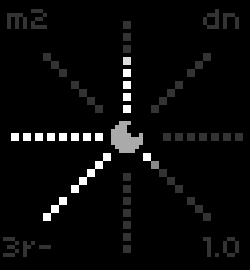
On load, the sunshine engine immediately starts granulating the norns' audio input. Each ray controls a different grain synth param (aka "engine command"). You can also granulate pre-recorded audio (see below for details.)
This granular synth engine uses SuperCollider's GrainBuf UGen. GrainBuf granulates audio using sound stored in a buffer.
K1+E2: switch between grain synth params.
The name of each grain synth param is shown on the screen to the right of the sun at the top of the screen. To the right of the sun at the bottom of the screen is shown the params' values. The param names are abbreviated:
- "sp":
engine.speed(the rate of the grain synth's playhead.default: 1) - "dn":
engine.density(the rate of grain generation. default: 1 grain per second) - "ps":
engine.pos(the playhead's position in the buffer) - "sz":
engine.size(the size of the granulated sample taken from the buffer. default: 0.1) - "jt":
engine.jitter(causes the playhead to randomly jump within the buffer. default: 0) - "ge":
engine.env_shape(the shape of the grain envelope...see below for details. default: 6) - "rl":
engine.rec_level(the amount of new audio recording into the buffer. default: 1) - "pl":
engine.pre_level(the amount of existing audio to be retained the buffer. default: 0)
Grain envelopes
The ray controlling the grain envelopes (ge), switches between six engelope shapes:
- Exponential (ray value: 1.0)
- Squared (ray value: 2.0)
- Linear (ray value: 3.0)
- Sine (ray value: 4.0)
- Cubed (ray value: 5.0)
- Welch (ray value: 6.0)
Note: exponential envelopes are the most percussive.
Record, play, and loop engine command modulations
- Select a param (using K1+E2)
- Press K2 to start recording (notice the
-changes to+) - Turn E2 to record some param changes
- Press K2 to end recording (notice the
+changes back to-) - Turn E1 to switch bewteen
record,play, andloopcontrols. The modes are indicated to the left of the sun at the bottom of the screen, using the abbreviationsr,p, andl. Changing - Turn E1 to switch bewteen
record,play, andloopcontrols.- The controls are indicated to the left of the sun at the bottom of the screen, using the abbreviations
r,p, andl. - As with starting/stopping engine command recordings, pressing K2 will start/stop playing and looping for the selected command. Stopping looping will result in the command playing as a 1-shot.
- The controls are indicated to the left of the sun at the bottom of the screen, using the abbreviations
Erase engine command modulations
- Press K2 twice to clear the recording of the selected engine command. Before erasing a recorded modulation, make sure the loop control is selected, and the control is not set to change the play or loop setting.
Freeze grains
- Let the grains emit for about 10 seconds to fill the recording buffer
- Set speed (sp) to 0
- Set pre-record level to 1 (pl)
- Set record level to 0 (rl)
- Change the position param (ps) to scrub the play head
Alternatively, use the freeze grains trigger in the params menu.
Reset grain phase
The reset grain phase trigger in the params menu regenerates the supercollider grain player. It is meant to be used to sync the beat of the grains with other music (e.g. when playing in an ensemble.)
Switch from "live" to "recorded" mode to play an audio file
- Select an audio file with the
sampleparam file selector - Set mode to
recordedwith theset modeparam
Sun 2: audio mangling with softcut
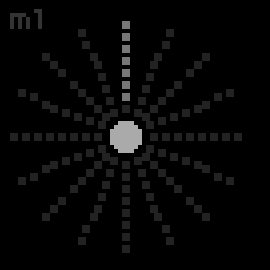
By default, the 2nd sun is configured to switch the softcut rate between 1 and a random value between 0 and 5. It is triggered when the lighted photon arrives at every other ray.
To start softcut rate switching, turn E3 until you see the sun pulsating. The velocity at which you turn E3 gets translated into the speed at which the softcut rate switches between 1 and 2.
To stop rate switching, turn E3 in the opposite direction.
Switching sun modes
K1 + K2/K3: switch the mode of the sun 1/sun2
Each sun can operate in one of four modes:
| Mode | UI behavior | Sound behavior |
|---|---|---|
| 1 | Softcut rate switching | Turning E2 or E3 moves photons around the sun |
| 2 | Live/recorded granular synthesis | The movement of photons in each ray controls the value of the SuperCollider engine command mapped to the ray |
| 3 | Nothing by default. Up to you to define | Encoders activate one or more photon(s) moving around its sun |
| 4 | Nothing by default. Up to you to define | Same as mode 1 |
Modifying and exploring the script
About the code
Conceptually, and as mentioned above, the script is made up two "suns." Each sun operates independently in one of the four modes listed above.
The code is organized hierarchically like so:
- kinesis.lua: the main file for the script (containing the
initfunction that norns will run when the script is first loaded)- sun.lua: sets the visual elements of the sun (e.g., number of rays) and handles the switching between the different modes (see the
Sun:encfunction) - sun_mode_X.lua: the ui and sound behavior is defined in these four files
- ray.lua: code for setting the size and position of each of the sun's rays
- photon.lua: code for each of the sun's "photons"
- sun.lua: sets the visual elements of the sun (e.g., number of rays) and handles the switching between the different modes (see the
- Engine_sunshine.sc: SuperCollider granular synth engine
- utilities.lua: misc. lua functions used by multiple files
Things to keep in mind while modifying the script
- Reload the script after making each of the modifications listed below.
- Restart your norns after making changes to SuperCollider code. Unlike Lua code, simply reloading the script after changing SuperCollider code will not work.
- Have the norns repl open so you can see any error messages that occur. Frequently, error messages will tell you exactly where the issue is occurring in the code.
- When you encounter an error, try to understand why it is happening. Doing something incorrectly and figuring out why the error is happening is often a very effective learning strategy.
- Try to only make one change at a time, reloading the script after every change. That way, if something isn't working it will be easier to revert back to the last known working state.
Simple modifications/explorations
kinesis.lua
- Change the value of the
sun_modesvariable in the kinesis.lua file so the suns start in with a different mode (use values1,2,3, or4) - Uncomment the print statements in the
keyandencfunctions, then restart the script and observe the values in the REPL that are printed when pressing a key or turning an encoder.- In the the
encfunction, modify theprintstatement so it only prints when enc 1 is turned (e.g. usingif/then).
- In the the
sun.lua
- Before making the changes below, switch to sun mode 3 or 4 using K1+K2/K3
- Change the number of rays (
NUM_RAYS) - Change the number of photons per ray (
PHOTONS_PER_RAY) - Change the sun radius (
SUN_RADIUS) - Change some other values that have a robot (-- [[ 0_0 ]] --) indicator next to them and see what difference it makes.
sun_mode_1.lua (softcut)
- Before making the changes below, make sure one of the suns is in sun mode 1 (
m1) using K1+K2/K3 - Softcut rate
- Find the code at the bottom of the sun_mode_1.lua file that changes the softcut rate and modify the values.
- Try modifying other softcut functions:
softcut.position(2,0)softcut.rate_slew_time (2,5)softcut.rec_level (2,0.5);softcut.pre_level(2,0.5)softcut.loop_end(2,1)
sun_mode_2.lua (sunshine granular synth, Lua code)
- Before making the changes below, make sure one of the suns is in sun mode 2 (
m2) using K1+K2/K3 - Engine initialization
- Find the
init_engine_commandsfunction - Change the default value for
engine.density - Change the default values for other engine commands
- Replace one of the commands in the
engine_commandstable with theengine.buf_win_endcommand
- Find the
- Change default grain mode from live to recorded
- Find the comment in sun_mode_2.lua: "switch to granulate an audio file by default"
- Uncomment the two lines that set the
sampleandgrain_modeparams - Be sure to add a file path to the audio file on your norns that you want to be granulated by default (see the note in the code.)
sun_mode_3.lua
- With K1+K3: switch the 2nd sun to mode 3
- Photon velocity
- In the REPL, run
suns[2]:set_velocity_manual(1) - What happens when different values are passed to the function (e.g.,
suns[2]:set_velocity_manual(-10))? - Review the
set_velocity_manualfunction in sun.lua to understand how it works - Review the
signfunction in utilities.lua to understand how it gets used byset_velocity_manual.
- In the REPL, run
- Active photons
- Play with the
active_photonsvariable. What happens if the initial values are changed? What happens if there are fewer or additional values in theactive_photonstable?
- Play with the
- Callbacks
- Uncomment the print statements in the
sun_mode_3.photon_changedandsun_mode_3.ray_changedfunctions. Reload the script and move the photons around with E3 to understand the conditions that trigger these print statements.
- Uncomment the print statements in the
Intermediate/advanced modifications/explorations
Understanding the code better with print statements
There are a number of print statements throughout the code that have been commented out. Uncomment some of them and try to understand the data being printed (e.g. what is the data used for in the code?)
sun_mode_1.lua (softcut)
- Add a trigger to stop and restart live audio recording without erasing existing audio in the softcut buffer.
sun_mode_2.lua (granular)
- Make use of the unused Lattice code in the sun_mode_2.lua file.
discussion
Like this script? React with 👍 or ❤️ below (needs a GitHub account). Reactions count as likes (♥) on splines, updated daily.